Getting started
What the editor can do, how the screen is laid out and how to save your work safely.
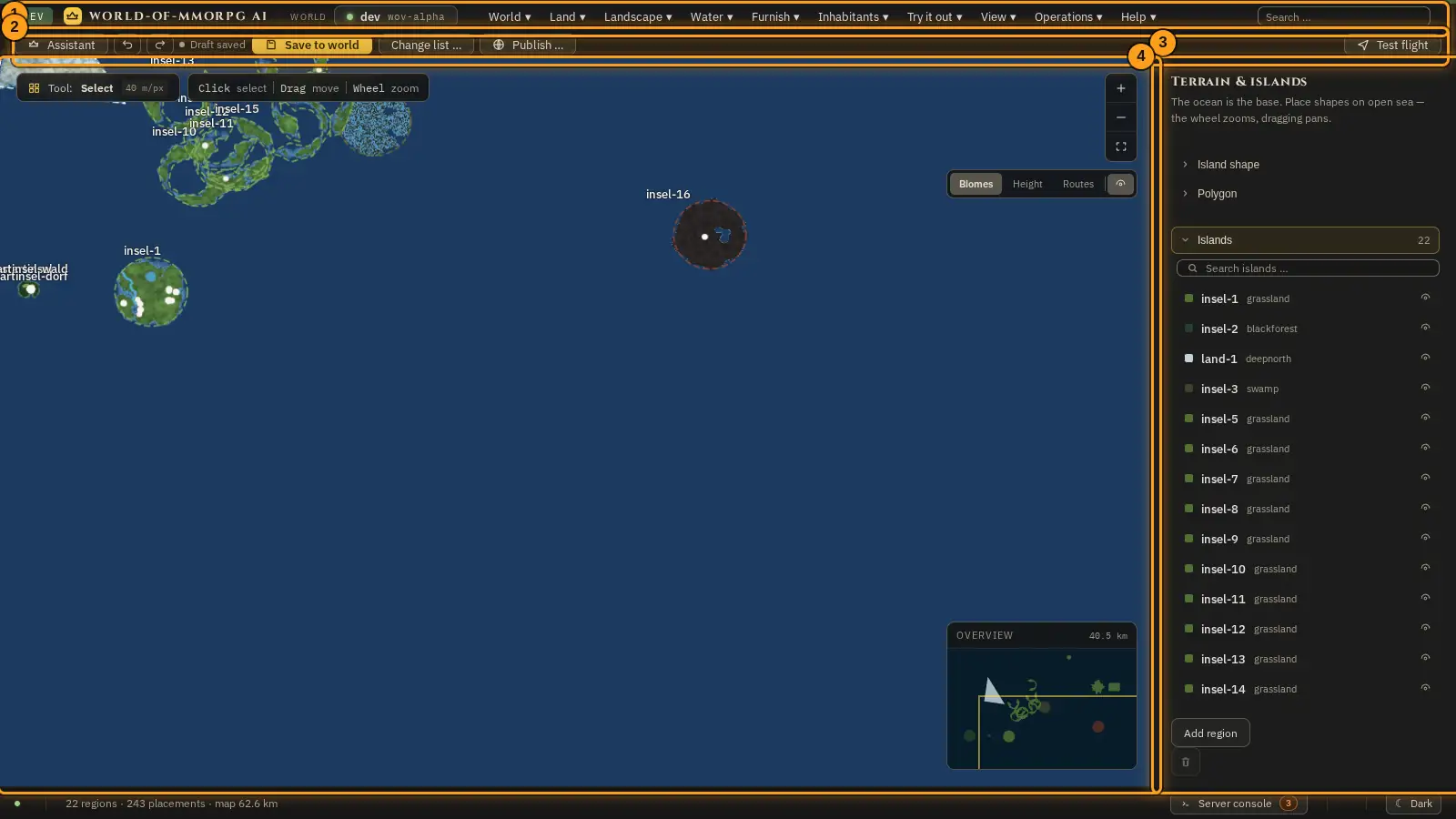
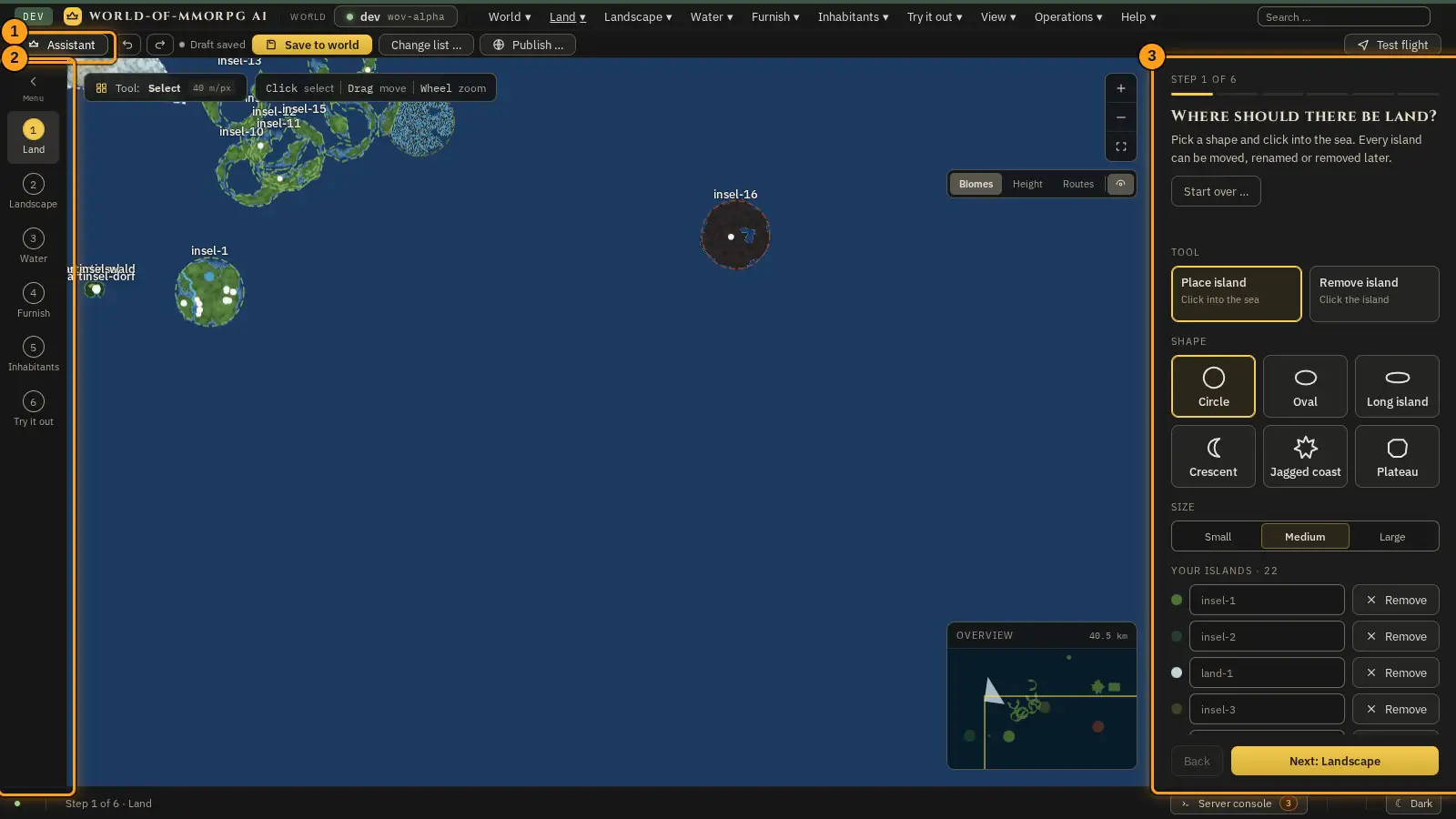
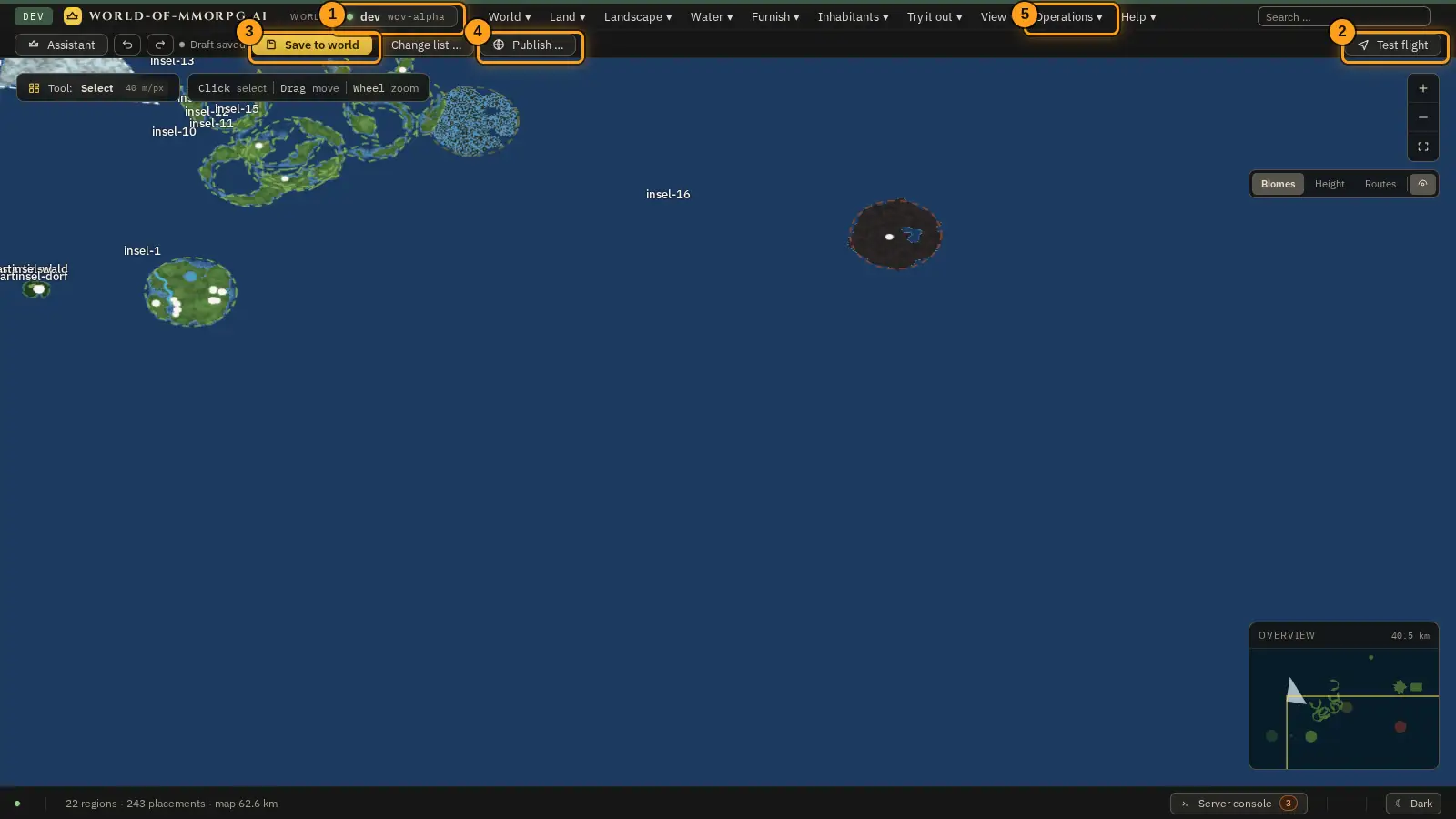
The pictures show the editor with sample data. The orange frames and numbers refer to the steps in the text.
Getting to know the screen
What for?
The editor is your workshop for worlds: you draw islands and water, place objects, set light and weather and build dungeons. A map from above shows you everything, and one click lets you fly through your work in 3D.
How it works
- At the top (1) sits the header in two rows. Row A carries the world you are working on on the left, then the menu bar with the menus World, Land, Landscape, Water, Furnish, Inhabitants, Try it out, View, Operations, Admin and Help, and account and world on the right. “Operations” and “Admin” only show if your access and the host allow them. You open a menu with the mouse or the arrow keys: items with “…” open a mask or a dialog, items with ▸ a submenu, and an item with ⓘ says where a function lives and jumps there. What each item does is in the chapter “Menu guide”.
- Row B (2) is the action bar. On the left sit the “Assistant” switch, Undo and Redo, the state of the draft, “Save to the world”, the counter of changes and “Publish …” (only with the matching operating way); on the right sits “Test flight”. The plaque “Test world running” sits in row A on the right. Every button calls the same function as the menu item for it — there is no second way.
- The toolbar (3) stands to the right of the map and appears only when the chosen menu item needs tools, such as island shape, vegetation, river or placing. It has the same groups the side bar used to have. With “View › Toolbar” you open and close it by hand.
- The map (4) takes the whole width the toolbar leaves free. The mouse wheel zooms, dragging moves the view, a click selects something. Masks, for example for creatures or biomes, open full screen over the map, if you like directly on the tab you chose in the menu.
- You switch the assistant on and off with the switch on the left of the action bar, with “View › Assistant” or with Alt+Shift+A. Switched on, it puts the step column on the left and the step window on the right of the map; it remembers the step, and switching on continues there. A click on a menu item switches it off silently — draft and step stay, nothing is lost.
- With Ctrl+K (⌘K on a Mac) you jump into the menu search next to the menu bar. Type part of a label, path or shortcut — “loot” finds Inhabitants › Creatures & NPCs › Loot —, ↑ ↓ choose, Enter runs it, Esc closes. Items that are not available come last, greyed out. Ctrl+K does nothing while you type in a text field, while the catalogue is open full screen or while a dialog is open. With F10 (or Alt+M) the focus jumps into the menu bar: ← → change the menu, ↓ or Enter opens it, Esc closes it, and another Esc returns the focus to the map. “Help › Keyboard shortcuts …” lists all shortcuts of the menu.
- If the menu bar does not fit into row A completely, the last menus move under “More ▾”. Below 980 pixels of window width the editor shows a “☰ Menu” button instead of the menu bar; it opens the menu as a foldable list, Esc closes it. You change the language under “View › Language”; the page reloads, and the setting applies to the game as well.
Tip: The editor keeps your draft in your browser. The world on the server only changes when you save – more on that in the next chapter. The first click on Items, Creatures, Animal animation or Quests loads the mask briefly; if that fails, a message appears, and clicking again loads it again.
Menu guide
What for?
For every menu and every item there is one sentence here: what it does and where it leads, in the order of the menu bar. A few items are already in the menu but not wired yet; they say so when you choose them.
How it works
- The “World” menu gathers everything that concerns the whole world: creating, reading and writing files, saving, publishing and resetting.
- World › New world from template …: opens the dialog in which you create a new world from one of three templates.
- World › Import: reads an exported file (JSON) back in as a draft.
- World › Export: writes the draft as JSON into the download folder.
- World › Save to the world: writes the draft of the world to the server; the same way as the bronze button of the action bar.
- World › Change list …: opens the list of all open documents (also with Alt+S).
- World › Publish …: saves everything and puts it on the game world; the item only appears if your access allows publishing.
- World › Compare with the server …: compares your draft with the state on the server and lets you resolve conflicts.
- World › Check report: jumps to the check report of the world in the toolbar.
- World › Displaced drafts …: shows the last (at most five) drafts that the editor displaced, so that nothing is lost silently.
- World › Reset world …: sets the world back to zero; a dialog first names what disappears and asks for the name of the instance.
- The “Land” menu sets the map and the toolbar up for drawing islands.
- Land › Islands: selects and moves islands on the map.
- Land › Place island: a submenu with the island shapes circle, oval, long island, crescent, jagged coast and plateau; a click on the map places the chosen shape.
- Land › Free shape (polygon): you draw the coast point by point.
- Land › Ruggedness when placing …: sets how rugged new islands become.
- Land › Island properties (ⓘ): the properties stand in the toolbar once an island is chosen; the item jumps there.
- Land › Continent of the island (ⓘ): the continent the chosen island belongs to is set in the toolbar; the item jumps there.
- Land › Map size: is meant to show land area and island overlap; the item is visible but not wired yet and says so.
- The “Landscape” menu belongs to vegetation and biomes.
- Landscape › Biome of the island (ⓘ): you set the biome of the chosen island in the toolbar; the item jumps there.
- Landscape › Vegetation of the island: opens the vegetation of the chosen island in the toolbar.
- Landscape › Scatter island again …: is meant to redistribute the vegetation of a chosen island; not wired yet.
- Landscape › Edit biomes …: opens the biome mask; the sub-items open it directly on the tab Light & Mood, Light (expert), Weather, Look, Grading, Ground, Vegetation, Pick-ups, Islands, Creatures, Grass, Ambience, Sound or Relief.
- Landscape › New biome …: opens the biome mask in which you create a new biome.
- The “Water” menu sets the map up for rivers and lakes.
- Water › Draw river: you draw a river on the map.
- Water › Place lake: you place a lake on the map.
- Water › Water body list: shows all water bodies of the world in the toolbar.
- The “Furnish” menu fills the world: objects, items, merchants, professions, quests and dungeons.
- Furnish › Object catalogue: a submenu; the groups All, Parts & décor, Plants and Uploaded open the catalogue full screen; “Upload model …”, “Store catalogue” and “Resources and classes” are visible but not wired yet.
- Furnish › Place: a submenu with Place (P), Select (V), Rotation, Random, Move, Delete (Del), Bundles per island and the hint “Fields of a placement” (ⓘ); it sets map and tool.
- Furnish › World start point: jumps to the section “World” of the toolbar in which the start point is set.
- Furnish › Continents and factions …: jumps to the section “World” of the toolbar with continents and factions.
- Furnish › Items …: opens the item mask; the submenu leads to the weapon types.
- Furnish › Merchants: opens the merchant mask.
- Furnish › Professions: opens the professions mask.
- Furnish › Quests …: opens the quest mask.
- Furnish › Dungeons: a submenu with “Dungeons” and “Dungeon 2.0”; on first opening the editor fetches the list from the operations service.
- Furnish › Kits: greyed out and locked; the function does not exist yet.
- The “Inhabitants” menu gathers everything that lives in the world: creatures, animals, effects, animations and routes.
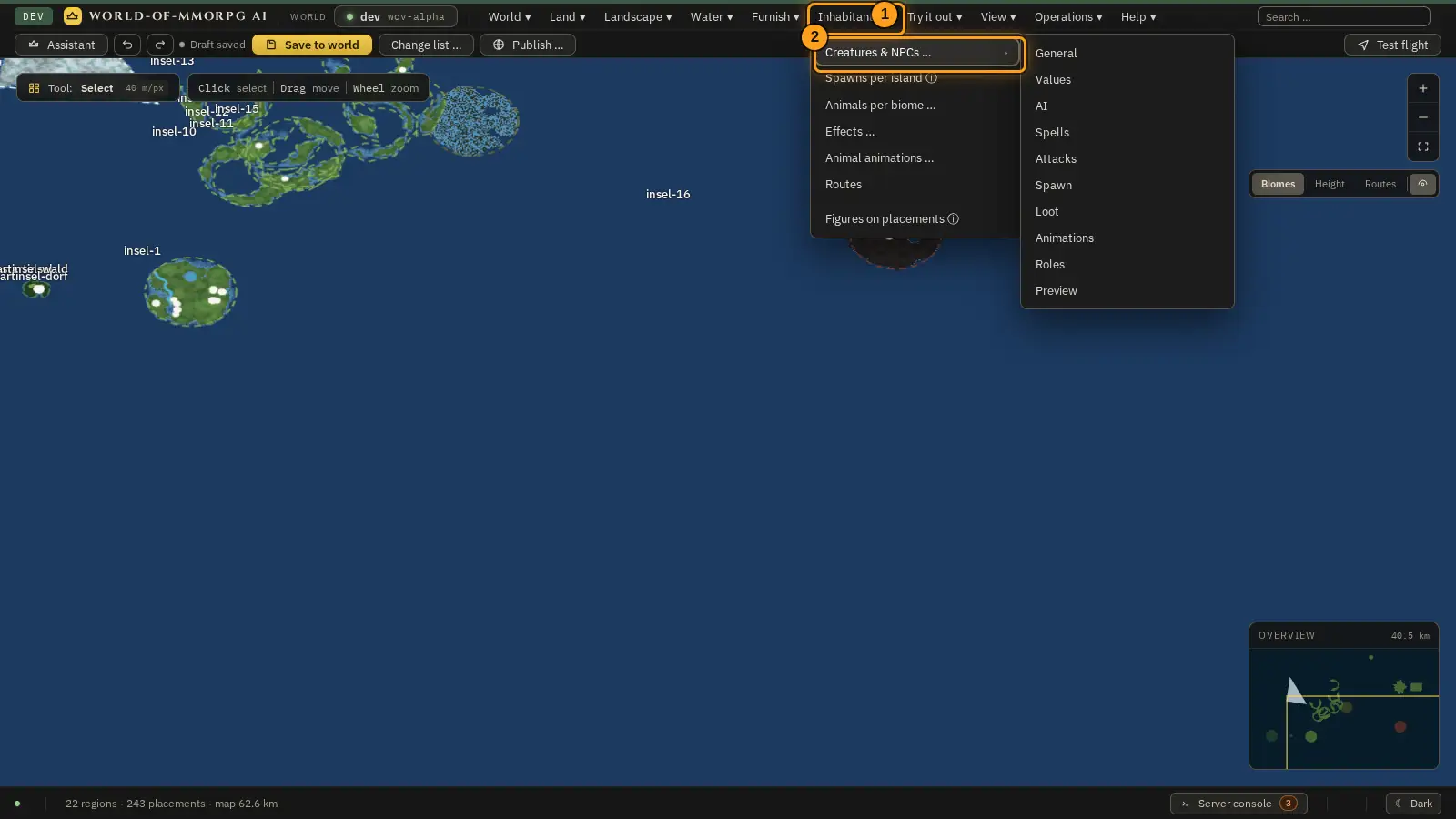
- Inhabitants › Creatures & NPCs …: opens the creature mask; the sub-items open it directly on the tab General, Values, AI, Spells, Attacks, Spawn, Loot, Animations, Roles or Preview.
- Inhabitants › Spawns per island (ⓘ): the spawns of an island stand in the toolbar; the item jumps there.
- Inhabitants › Animals per biome …: opens the biome mask on the tab Animals.
- Inhabitants › Effects …: opens the effects mask.
- Inhabitants › Animal animations …: opens the creature mask on the tab Animations.
- Inhabitants › Routes: sets the map to routes and says how many routes there are.
- Inhabitants › Figures on placements (ⓘ): you set the figure of a placement on the property card of the placement; the item jumps to placing.
- The “Try it out” menu takes you into the world you have built.
- Try it out › Test flight: starts the test flight through your world (key T).
- Try it out › Island choice …: chooses on which island the test flight begins.
- Try it out › Rebuild preview: rebuilds the preview of the world.
- Try it out › Checklist “ready to play”: jumps to the check report that shows what the world still lacks to be playable.
- The “View” menu changes how the editor looks, not what you build.
- View › Assistant: switches the assistant on and off (also with Alt+Shift+A or the switch on the left of the action bar).
- View › Tool bar: opens and closes the toolbar on the right by hand.
- View › Layers: a submenu with the switches Biomes, Height, Routes and Names for the map; they are visible but not wired yet.
- View › Zoom: a submenu with “Fit to view” and “Overview map”; both are visible but not wired yet (the mouse wheel and the buttons on the map still zoom).
- View › Server console: shows the console of the server at the bottom of the map.
- View › Colour mode: System, Light or Dark; the same switch as the toggle in the footer.
- View › Language: Deutsch or English; the page reloads, and with unsaved changes the browser asks first.
- View › Search the menu …: opens the menu search (Ctrl+K).
- The “Operations” menu holds the maintenance actions; it only appears if your access has at least one of these ways.
- Operations › Test map live: saves the draft, sets the world file aside and restarts the game server with the fresh map.
- Operations › Restore dev world: only appears while a test world is running; brings the set-aside world file back.
- Operations › Restart server: restarts the game server; the editor asks first.
- Operations › Stop: halts the game server; visible only while it runs; the editor asks first.
- Operations › Start: starts the game server; visible only while it is stopped.
- Operations › Orphaned worlds: opens the list of stored world identifiers without a world.
- The “Administration” menu (formerly “Admin”) exists only with the admin right; its rows are links to the administration page on the admin host and open it in a new tab. The “Administration” link at the top right on the admin host leads to the same page.
- Administration › Overview …: opens the start page of the administration page (address /en/admin).
- Administration › Release starting stock …: opens the area “Starting stock” of the administration page (address /en/admin/stock); the row exists only in the template instance.
- Administration › Open another world …: opens the area “Worlds” of the administration page (address /en/admin/worlds).
- Administration › Areas per access …: opens the area “Roles and rights” of the administration page (address /en/admin/roles).
- Administration › Admin log …: opens the area “Log” of the administration page (address /en/admin/log).
- The “Help” menu leads to the manual and the keyboard shortcuts.
- Help › Manual for the current menu item: opens in a new tab the manual chapter of the menu item you used last; before that the chapter “Getting to know the interface”.
- Help › Manual (contents): opens in a new tab the list of all books of the manual.
- Help › Keyboard shortcuts …: shows all keyboard shortcuts of the menu in a window.
- Help › About this editor …: opens the platform page in a new tab.
Tip: “Help › Manual for the current menu item” opens the chapter for the menu item you used last. If an item belongs to an area your access has no right on, it is missing; a menu without items is not built at all.
If something does not work
- A menu or an item is missing for me.
- The menu follows your role. As a creator you see the menus World to Help; “Operations” only with an operating way, “Admin” only on the admin host. Items whose area you have no right on are missing, and a menu without items is not built.
- What does the word “Admin” mean behind some items?
- On the admin host the editor shows the “Administration” menu (links to the administration page, which opens in a new tab). If you work in the world of another owner, the small word “Admin” stands behind the items of the menus World to Inhabitants, and the red marker “Operations: world …” stands at the top. That is how you can tell you are working in a foreign world.
- An item says it is not wired yet.
- The item is already in the menu, but its function is not attached yet. Today that concerns Map size, “Scatter island again”, the switches under Layers and Zoom, and “Upload model”, “Store catalogue” and “Resources and classes”. Zooming still works with the mouse wheel and the buttons on the map, the other functions through their place in the toolbar or the button in the catalogue.
Draft, saving and server
What for?
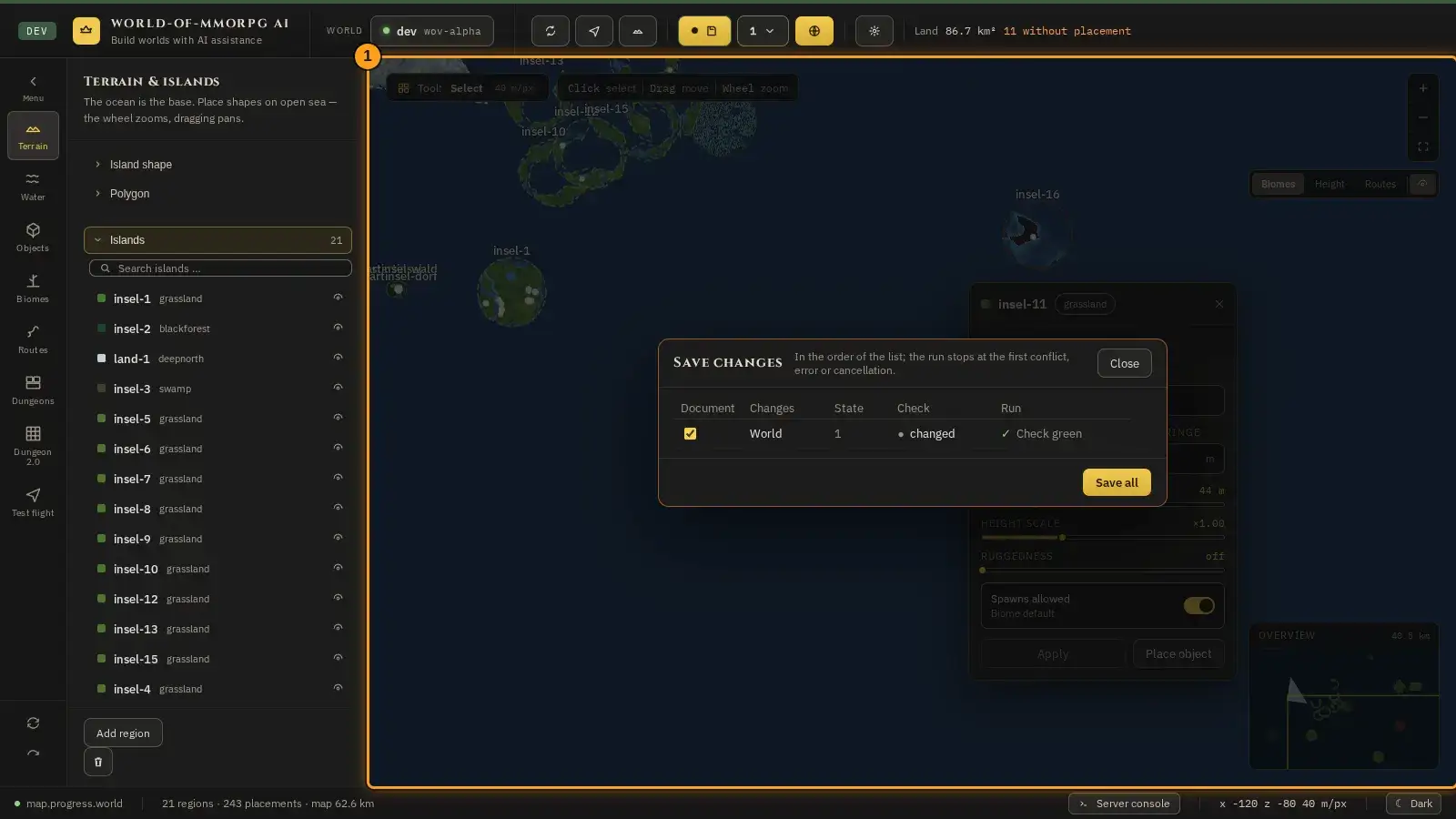
Everything you draw is first a draft in your browser. The counter in the action bar shows how many documents are open, and “Save all” writes them into the world on the server in the order of the list. That is how you can try things out at ease. “Save all” changes nothing in the running game — only “Publish” saves AND puts the game world live, and for that the server restarts.
How it works
- The counter next to “Save to the world” in the action bar shows the number of open documents; at zero it shows a check mark, dimmed. With nothing open the button reads “All saved” and cannot be clicked.
- A click on the counter (or Alt+S) opens the change list: one row per document with its number of changes, its state (changed, conflict, error) and the check lamp — always as text and symbol, never colour alone. The order is the write order: effects, items, creatures, tier animation, biomes, world last. The number of open documents is read from the directory on every input, every click, after every save run and when the list closes. Alt+S opens the list only when no other window lies above it: no question of the editor, no question of a mask, no “New biome” assistant, no upload curtain and no “Reset world” dialog.
- The box in front of each row says whether it is saved along. Every changed row is ticked; a row with a red check is not — it could not be saved as it stands. If you want to write it anyway, tick it and choose “Save anyway”: the editor asks a second time beforehand.
- “Save all” writes the ticked documents one after another, each through its own path. At the first conflict, error or cancellation the run stops: the stopping row is marked, every later row reads “not executed”, and nothing further is written. After the run the dialog reads the states from the directory again — it never asserts a state of its own. The 60-second deadline only counts the time when nobody is being asked: while a question or “Really overwrite?” is open, it rests — you may read and answer in peace. Only if the server stays silent for 60 seconds with no question open does that document count as an error (deadline) and the run stop.
- A conflict means someone else saved first. The row offers “Open reconcile” — the same path as elsewhere (the document’s mask, and for the world the comparison of server states). Nothing is overwritten by it. While a run is writing, Close and Alt+S are locked, and the bronze button does not write either. While a save run is active, the editor starts no server restart, switches no test world and does not reset the world: “Test map live”, “Restore dev world”, “Restart server” and “Start” in the “Operation” menu plus “Reset world” in the World tab then say that a run is active instead of asking. “Stop” deliberately works during a run as well — an emergency stop must never wait. A stuck lock (for example after a closed window) is lifted by the operator through the operations service’s “aufheben” action; there is no button for it in the editor yet. Escape then ends nothing. Escape answers only questions that have an Escape path: the list’s “Save anyway?” and the creature mask’s question (both with “No”); “Really overwrite?”, the questions of biomes, items, effects and tier animation and the “Reset world” dialog have no Escape path and stay open. Escape closes the list when no run is active and returns the focus to the counter; the bronze button next to it still saves only the world. If the server does not answer within 15 seconds while saving the world or the tier animation, the editor does not say “not saved” but “unclear”: the server may have written. For the world you then reload via “World” or reconcile before saving again; the tier animation keeps your draft and asks about reloading on the next save — nothing is discarded.
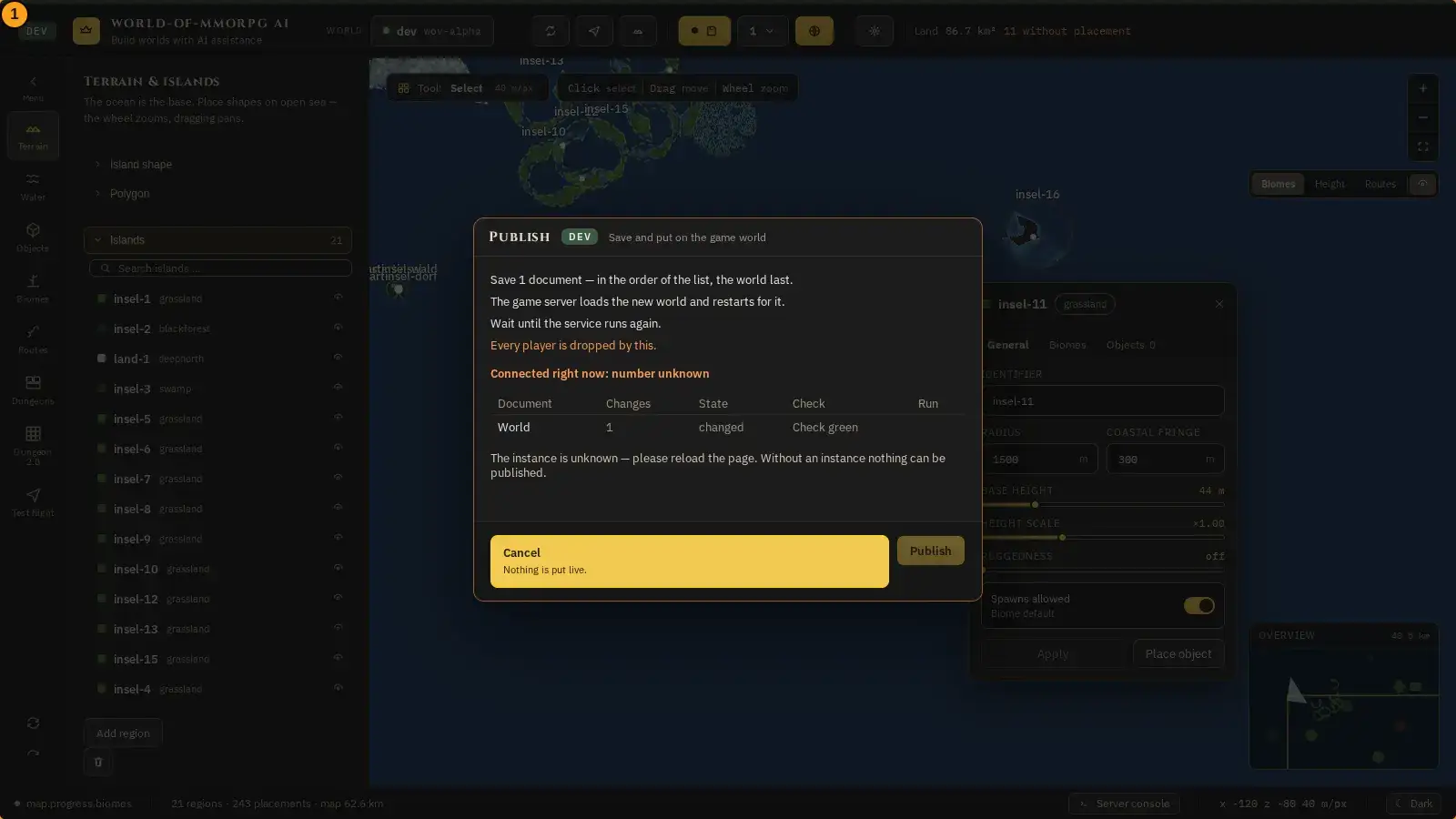
- The “Publish …” button in the action bar (or “World › Publish …”) saves all open documents and then puts them on the game world: a running test world is rebuilt, otherwise the game server restarts — every player is dropped by this. The run takes over only if every document really was saved; otherwise the footer says “Saved n of m — … not saved (reason); game world NOT updated”, and the server does not restart. Red rows: the editor offers “Publish anyway” only when the red document’s mask really allows overriding the check (today only the tier animation). For creatures, effects, items and biomes you must fix the error in the mask; while the row stays red, nothing is put live. If there is nothing to save, publishing only puts the world live — the window says so (“Nothing to save — put live only.”). On every instance except dev, the run asks once more while saving the world “Really overwrite?”: if you decline, the world counts as not saved and nothing is put live. Beforehand the window names the number of players logged in (or “number unknown”) and the documents that will be written. The number is read when the window opens and once more when the run starts: if more players are connected by then, the run does not start but names the new number and asks for a second click. If the world is live, the button stays off until you have typed the instance name (live); on dev no typed confirmation is needed, it applies only on live and when the instance is unknown. If a publish run is already active — in this window, in another one, or after a reload — the editor says so instead of starting a second one. While documents are being saved you can cancel; after the restart command you cannot. While the player count is being re-read, “Re-reading the player count …” stands in the window and the start button stays off. If the fresh number takes longer than 5 seconds, the run starts with the previous figure. A cancel in this time ends the start attempt immediately: the window closes, the editor reports “Publishing cancelled.”, and the reading is discarded — nothing is written. A cancel once the start has been requested, while the service has not handed out the lock yet, is noted; it takes effect as soon as the service answers, and nothing is written then. If the start already fails (the service is unreachable or answers with an error), the reason stays in the window and the start button is usable again. If a single mask fails, the partial state above applies: no further document is written, nothing is put live, and the window stays open. If the run itself fails while saving after it has started, however, the message says so explicitly (“Publishing failed mid-run: …”, not “not started”), the window stays open, and the rows say what was written. Before putting the world live the editor renews the publish lock (the service sets it to 15 minutes) and waits at most 10 seconds for the answer; if it does not come, nothing is put live and the message names the 10 seconds. With the switch to putting it live the window closes; if putting it live fails, the message “Putting it live failed: …” stands in the footer. If a document that was clean when the window opened becomes unsaved again before or during the run, the success message afterwards names the document that was therefore not published. A document without a known title appears in that list as “An unknown document” — without an identifier.
Tip: If you leave the page with unsaved documents or unsaved changes in the weapon type and object class windows, the browser asks first. After a stop the draft stays: it is not lost, only not written — resolve the conflict and save again.
If something does not work
- Saving is refused because the world has changed in the meantime.
- Someone has changed the world on the server, and the editor never overwrites anything it does not know. Click the “World” field at the top: the editor fetches the server state and shows you a comparison. Choose “Keep draft” there and save again afterwards.
- A row has a red check, and “Save all” is disabled.
- A red check means the document cannot be saved as it stands, which is why its box is empty. Fix the error in the document’s mask, or tick the row and choose “Save anyway” — the editor then asks a second time.
- The editor says that a publish run is already active.
- Wait until the other window is done (it shows the start time), or until the lock expires: it lasts at most 15 minutes after the last step. Closing or reloading a window does NOT release the lock. As an operator you lift it with the operations service’s “aufheben” action; there is no button for that in the editor yet.
The Operations menu
What for?
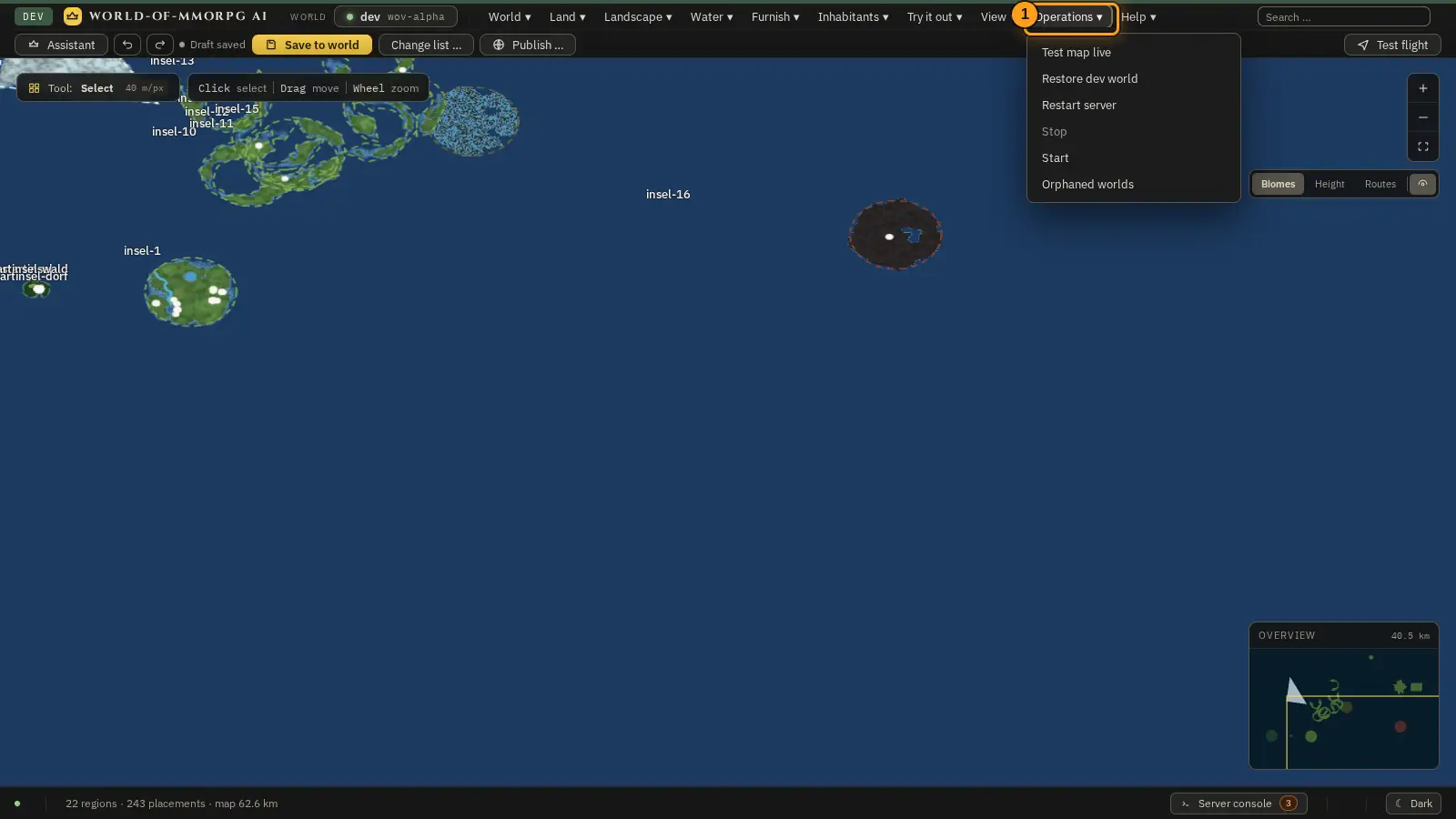
All maintenance actions of the editor sit in the “Operations” menu of the menu bar. That leaves the daily actions visible in the action bar, and a “Stop” item does not sit next to Save.
How it works
- Open “Operations” in the menu bar (1). The menu unfolds below it and shows the entries Test map live, Restore dev world, Restart server, Stop or Start and Orphaned worlds; Export and Import are in the “World” menu. “Restore dev world” and one of the two server items only appear when they apply.
- “Test map live” saves your draft, sets the world file aside and restarts the game server with the fresh map. If a test world is already running, the editor asks whether to renew it.
- “Restore dev world” only appears while a test world is running: it restores the set-aside world file and restarts the game server. The three menu items “Restart server”, “Stop” and “Start” follow the state of the game server. Restart and Stop ask before they act, Start does not. “Test map live” and “Restore dev world” ask before they act as well.
- “Orphaned worlds” opens the list of stored world identities. In the “World” menu “Export” writes the draft as JSON to the download folder, “Import” reads such a file back in as a draft.
- By keyboard: arrow up and down move through the entries, Home and End jump to the start and the end, Enter or Space choose, Escape closes. A click next to the menu closes it too; focus then returns to the button.
- Setting the world to zero: in the World tab, “Reset world …” opens a dialog (blocked on the live instance). Beforehand it names, with the real numbers, what will be removed and what stays, and asks you to type the name of the instance. For the terrain seed you choose “Keep seed” or “Roll a new seed”. “Keep seed” only works while the world document is readable: if it is missing or unreadable there is no seed to keep. Then “Keep seed” is disabled, the dialog selects “Roll a new seed” and says in the “What will be removed” list that the seed is rolled anew. The operations service also refuses “keep” in that case, with the message “The world document is missing or unreadable”, and touches nothing. Nothing is deleted: the saved game and the world document are backed up and put aside under a name with a timestamp. If you save in the editor while the service is resetting the world, the reset aborts: the service puts everything back, starts the server again and reports that the world document was saved (if someone deleted it in the meantime, it reports that it was deleted). The same applies if the world document was missing at the start and the editor creates it in the meantime. Your saved state is kept; start the reset again if you still want it. If you save only after the service has written the new world document, the reset goes through; your save then reports a conflict and you reload the world. If the world document is a symlink without a target or a symlink that points in a circle, the service aborts at once: the message reads “The world document is a symlink without a target” or “… symlink loop”, no backup is attempted, and nothing is touched. Remove or repair the symlink and start the reset again.
Tip: The entries follow the server: “Stop” is only visible while the game server runs, “Start” only while it is stopped.
The administration (own page on the admin host)
What for?
The administration is no longer a view of the editor but a page of its own on the admin host (admin.world-of-mmorpg.de or .com), where administrators look after users, roles, invitations, worlds, the starting stock, the log and security. The editor only points there: the “Administration” menu (admin right only) opens the page in a new tab, and a session without a world shows the notice “This session has no world” with the link “Open administration”. Whether an action is allowed is always decided by the server.
How it works
- Opening from the editor: menu “Administration” › “Overview …” opens the start page of the administration (address /de/admin or /en/admin) in a new tab. An admin account without a world sees only the notice and the link “Open administration” in the editor.
- The other rows of the menu lead straight to their area: “Open another world …” to the worlds (/admin/worlds), “Areas per access …” to the roles (/admin/roles), “Release starting stock …” to the starting stock (/admin/stock, template instance only) and “Admin log …” to the log (/admin/log).
- In the world line at the top right the admin host shows the link “Administration” (formerly “Operations”); it leads to the same page.
- Back into the editor you go from the administration page: under “Worlds” the link to open a world in the editor. The areas of the administration page are described in the book “Website”.
Tip: The link is always derived from the editor’s own address (only the two known domains, only de or en) and never leads to a guessed address; on any other host the menu does nothing.
Controls: menu, undo and zoom
What for?
A few handy moves make working with the editor much faster and safer.
How it works
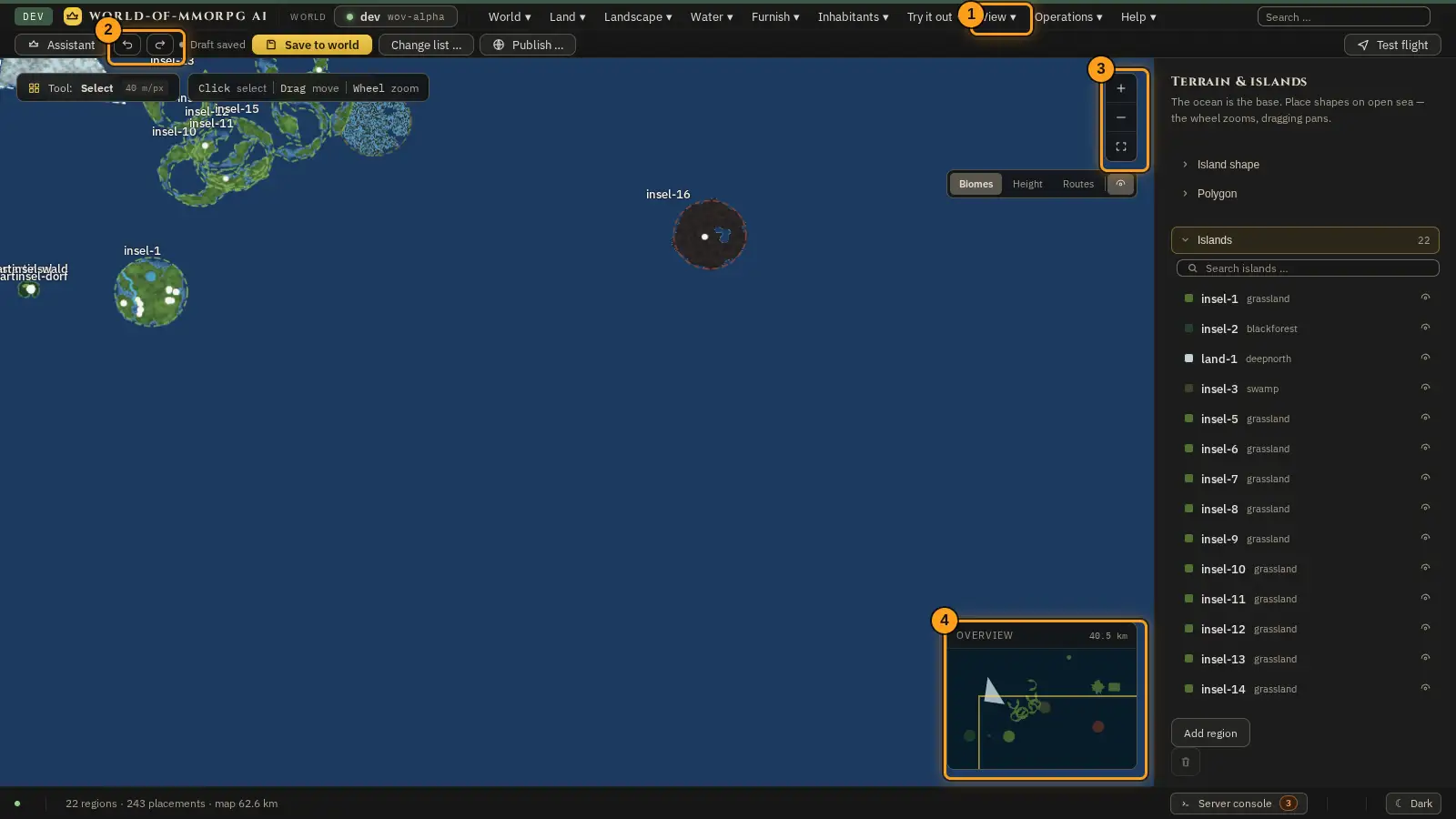
- With “View › Toolbar” (1) you open and close the toolbar by hand. Closed, the map gets more room.
- On the left of the action bar (2) are “undo” and “redo”. Ctrl+Z takes back the last step. The editor remembers the last fifty steps.
- At the top right of the map (3), the “+” and “−” buttons zoom in and out, and the third button fits the whole world into view. The mouse wheel does the same.
- The overview (4) at the bottom right shows the whole world. Clicking it moves the map to that spot.
- You operate the menu bar by keyboard as well: F10 jumps into it, ← → change the menu, ↓ or Enter opens it. After a menu item or a mouse click the focus is back on the map, so the game keys (P, V, T, Ctrl+Z) do not stay stuck in the menu.
Tip: Ctrl+Z and Ctrl+Y (redo) work for the map and for placements. Feel free to experiment, you can almost always go back a step.
Light and dark
What for?
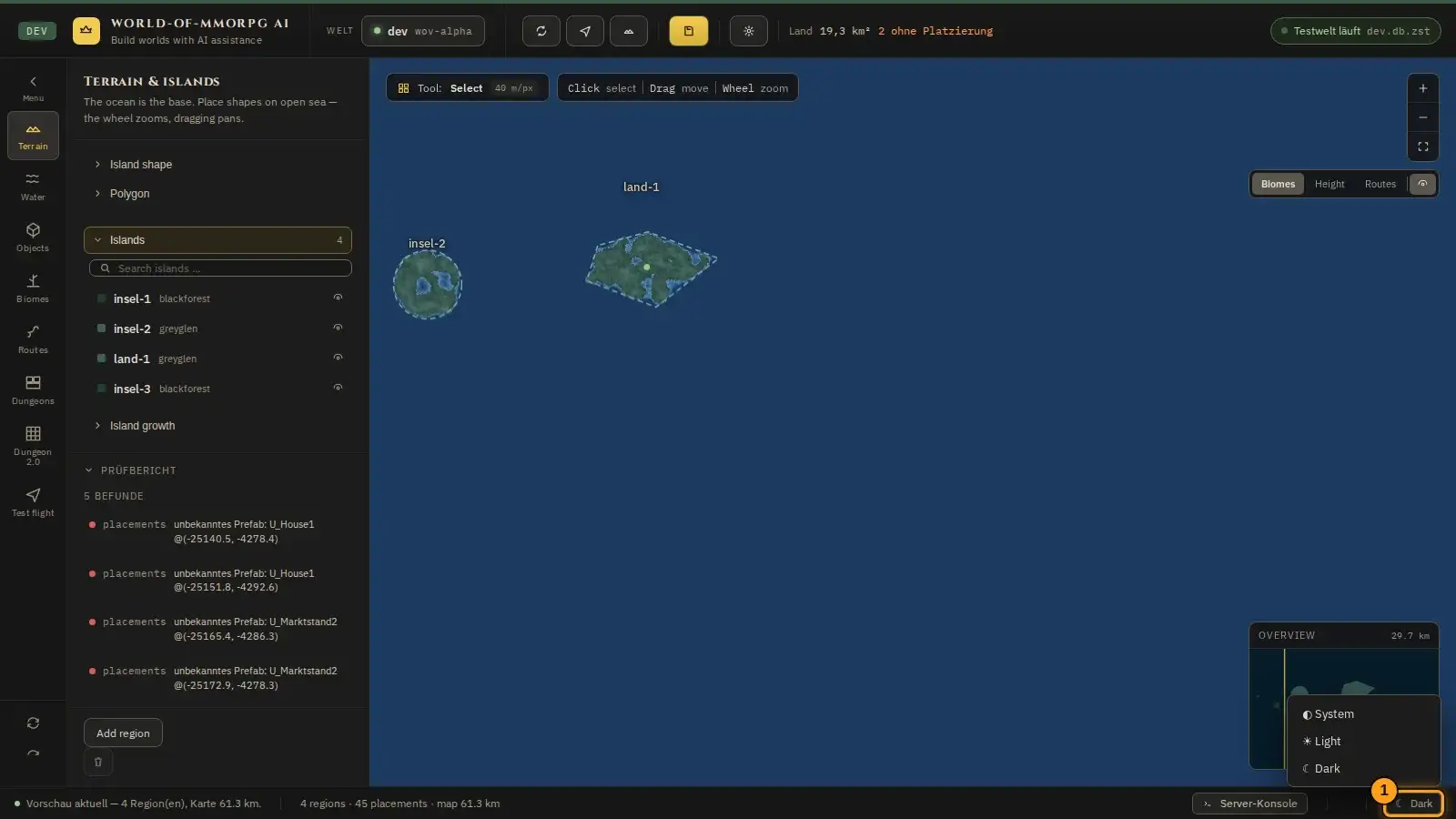
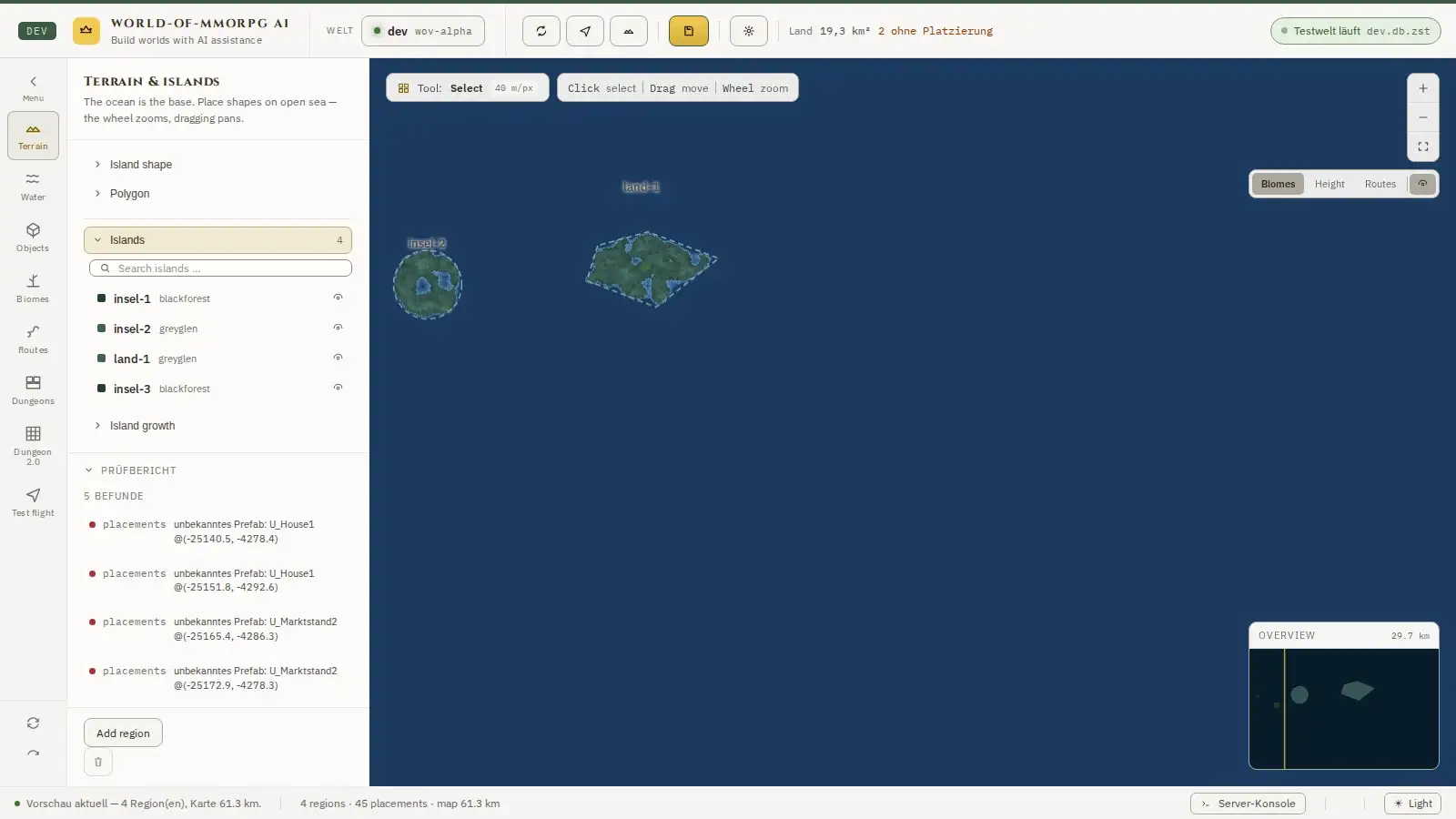
The editor can appear light or dark. Whether it follows your operating system or your own choice is up to you: bottom right in the footer. The colours come from the same template as the website; the light-mode steps are derived from it.
How it works
- On the right of the footer (1) sits the switch. It shows a symbol and the word of the mode that is currently in effect: ☀ Light or ☾ Dark.
- A click opens a menu with three entries: System, Light and Dark. “System” follows the operating system and changes with it when you set your machine to dark in the evening.
- Choose an entry with the mouse or with the arrow keys and Enter. Escape closes the menu without changing anything, and the focus returns to the button.
- Your choice applies to this browser on this device: the editor remembers it. On another machine or in another browser, “System” applies again. If a second editor window changes the mode, every open window in this browser follows at once; if you had chosen “System”, the other window’s choice applies from then on.
Tip: The accent and the base tones come from the website colour template (gold as the only colour of action, warm greys); the light-mode steps and the signal and focus colours are derived from them. The map keeps its world colours — a light ocean would no longer be a map; its labels are fixed light with a dark halo. The 3D previews, however, follow the mode: background, grid and selection change with it, the sky dome and the models‘ colours stay. The biome preview shows the world’s sky and does not follow.
Installing the game and playing without the browser bar
What for?
Installed as an app, the game starts in full screen without the address bar, has its own icon on the home screen or desktop and opens like any other app.
How it works
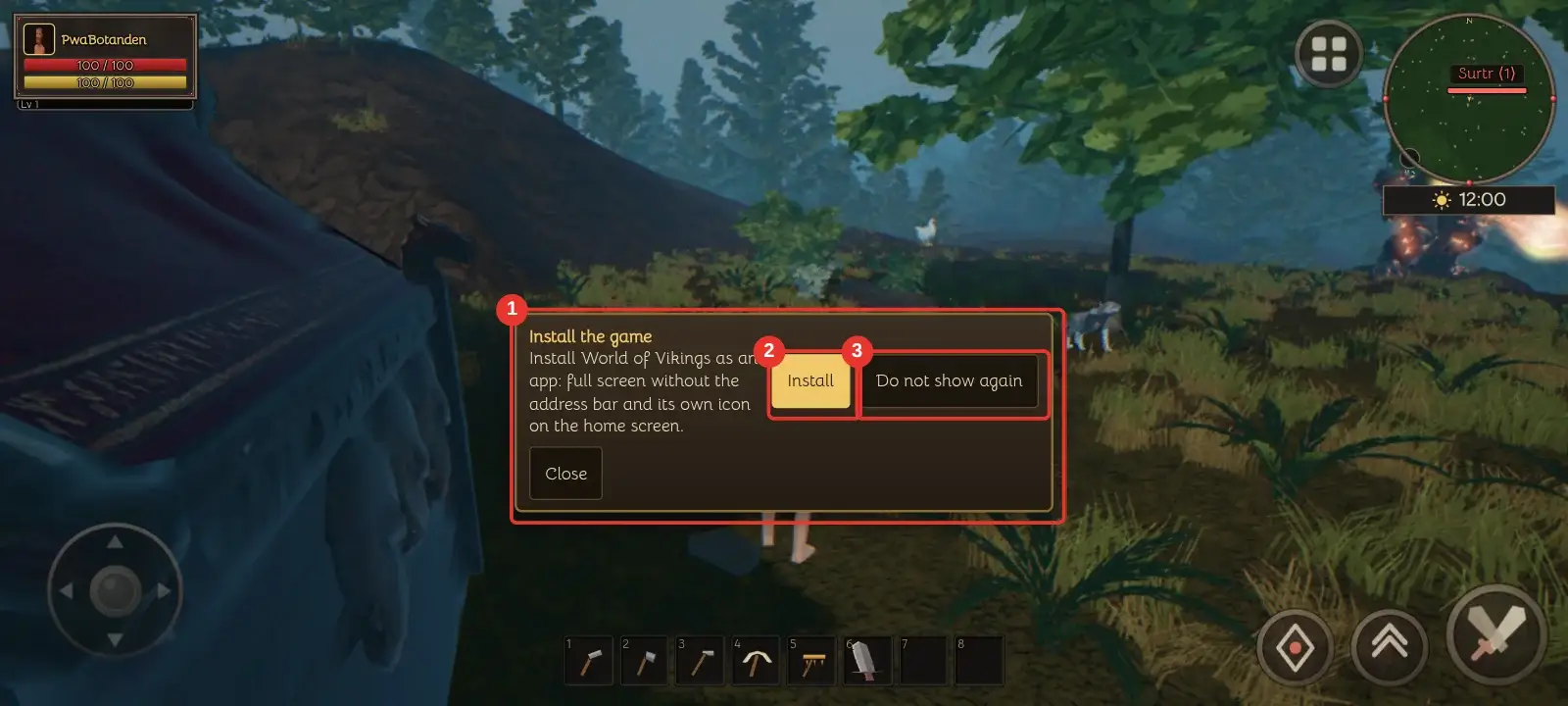
- Android with Chrome: after you enter the world a strip “Install the game” appears at the bottom (1). Tap “Install” (2) and confirm.
- iPhone and iPad with Safari: tap “Share” and choose “Add to Home Screen”. Safari cannot offer the installation by itself, the strip only shows the instructions.
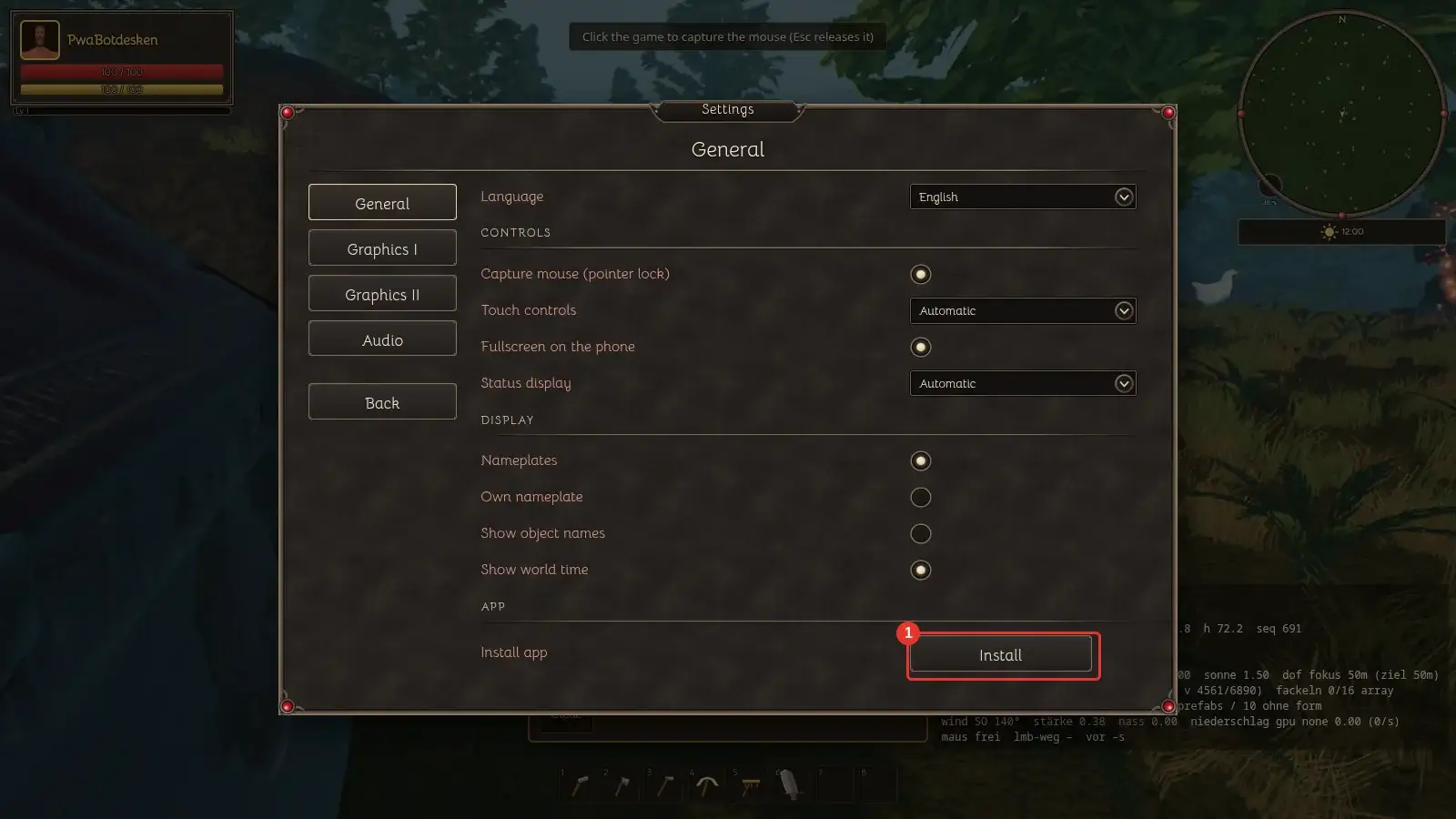
- Chrome and Edge on a computer: click “Install” in the same strip, or open the settings, choose the tab “General” and click “Install” under “App” (picture 2).
- Start the game from the new icon afterwards. The strip no longer appears then.
- “Do not show again” (3) hides the strip for good; the settings keep offering the installation.
Tip: Firefox on a computer does not offer installation; the game runs in the normal window there.
If something does not work
- I see no strip.
- The game already runs as an app, the browser does not offer installation (Firefox on a computer, an iOS browser other than Safari), or “Do not show again” was chosen. On the iPhone use the Safari way from step 2.
- Without a network “No connection” appears.
- The game needs an internet connection. Check the network and tap “Try again”.
- I closed the browser dialog and now the button in the settings is gone.
- The button is replaced by a note: the installation was cancelled. The browser will offer it again by itself later, and the “Install” button returns then. Until then choose “Install app” in the browser menu.